
How do I request online reviews via ClientStack
One of the easiest ways to improve your online visibility is by consistently asking satisfied clients to leave a Google review.
Why Google Reviews MatterGoogle reviews do more than build trust—they also help improve your visibility in local search results. Consistently earning authentic reviews signals to Google that your firm is active, reputable, and engaged with clients, making it easier for prospective clients to find your business online. Even a few new reviews each month can contribute to your long-term marketing success.
With ClientStack, you can send a personalized review request by email or text message in just a few clicks.
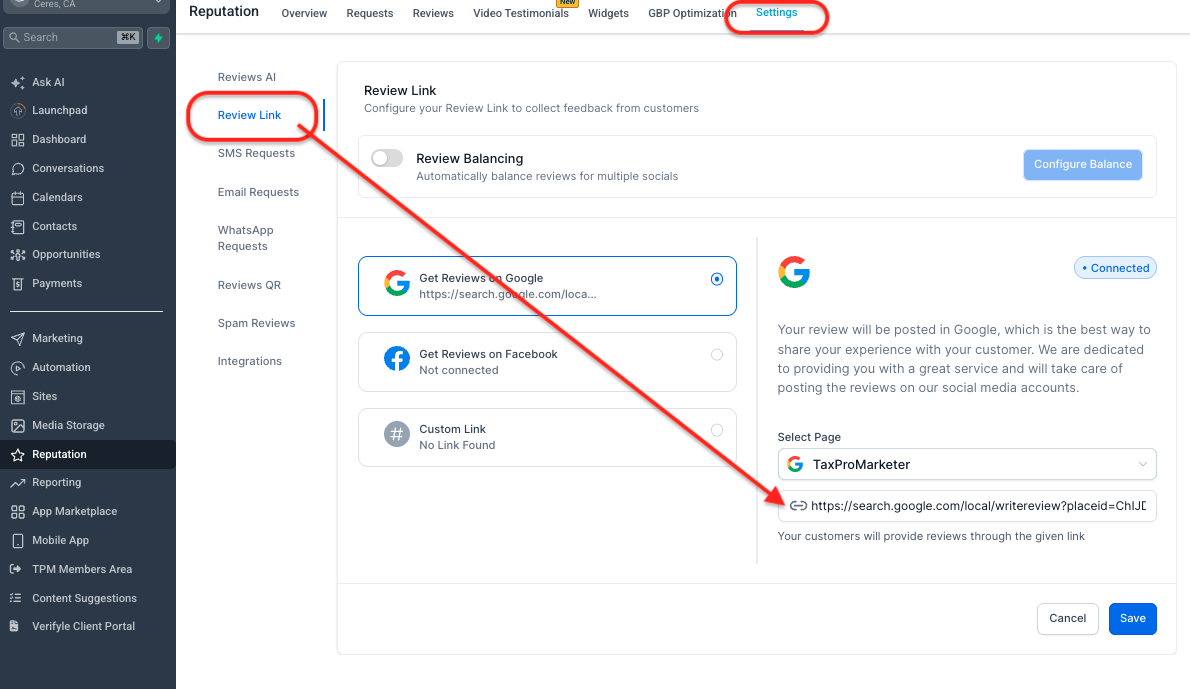
Before sending out a review request, make sure to check if you have successfully connected your Google My Business Profile.
Go to your Reputation Tab -> Settings -> Review Link
Review the Email Request Settings, check or edit the email content of the generated email templates for the Google review request.
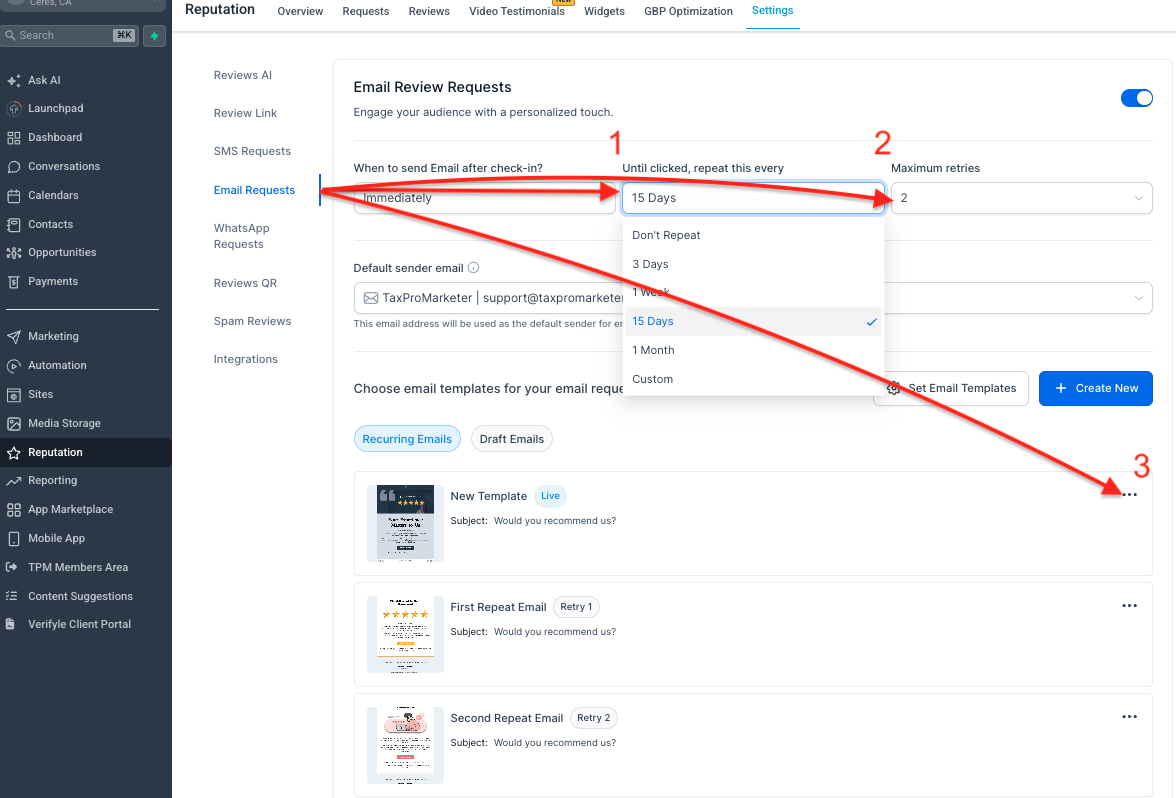
Go to the Reputation Tab -> Settings -> Email Requests -> Update the email sending frequency
Click the 3 dots on the email template to edit or update the email templates.
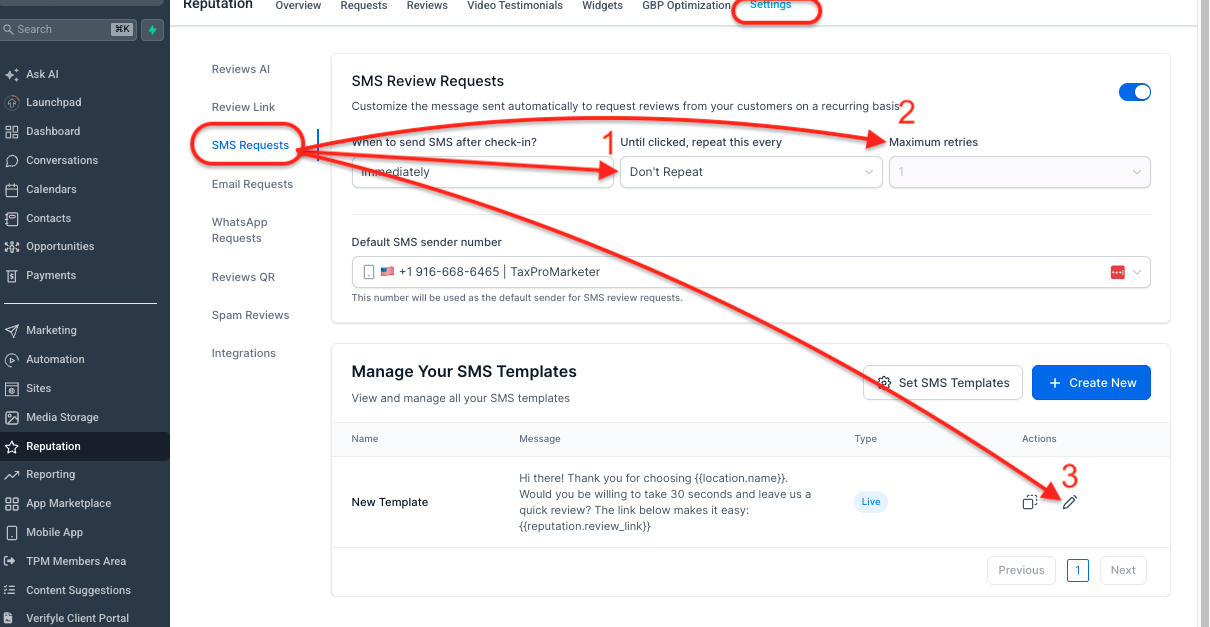
Please review the SMS Request Settings. If you are subscribed to our FoneToolz™ phone service, you can send Google review requests via SMS.
To customize the email content for the generated templates for the Google review requests, follow these steps:
1. Navigate to the Reputation Tab.
2. Select Settings.
3. Go to Email Requests to update the SMS sending frequency.
4. Click the three dots on the email template to edit or update the SMS templates.
How to send a Google review request in ClientStack
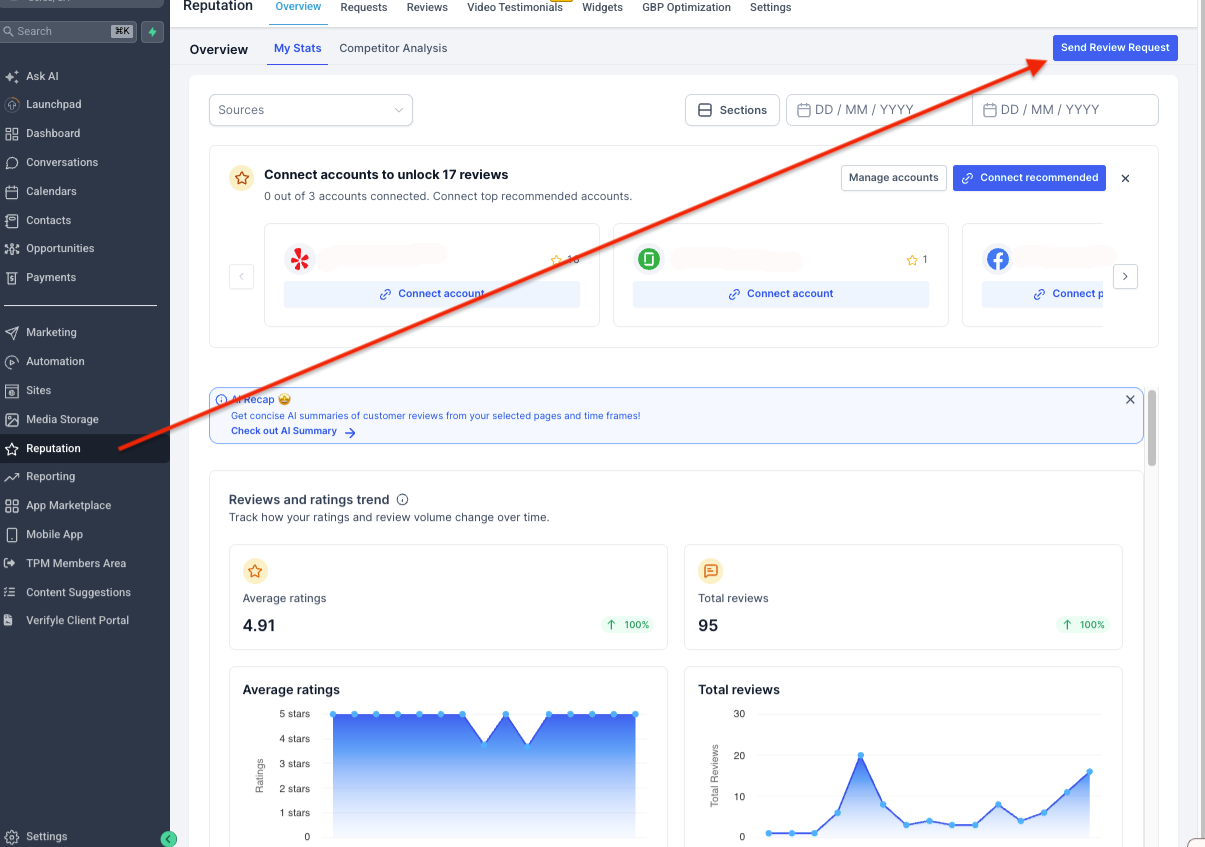
Step 1: Open the Reputation Section
From the left-hand navigation menu in ClientStack, click Reputation.
Step 2: Click "Send Review Request"
In the Reputation section, click the Send Review Request button.
Step 3: Select Your Client
Begin typing your client's name in the Contact Name field.
If the contact already exists in ClientStack, simply select them from the list.
If they're new, you can create the contact by entering their information.
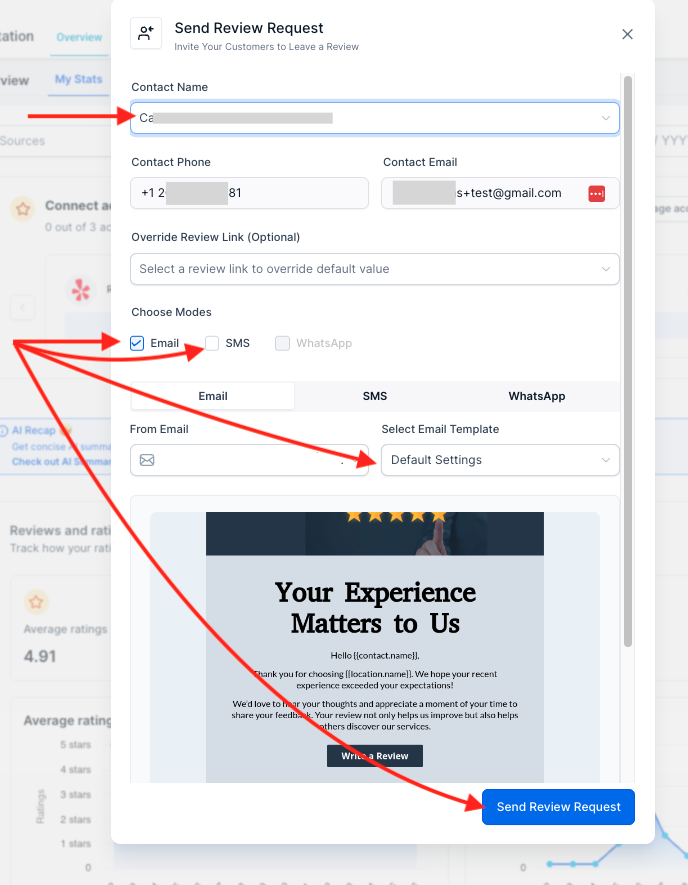
Step 4: Verify Their Contact Information
Make sure your client's:
- Phone number is correct (for SMS requests)
- Email address is correct (for email requests)
Having accurate contact information ensures your client receives the review request.
Step 5: Choose How to Send the Request
Under Choose Modes, select how you'd like to send your review request.
You can choose:
- SMS (Text Message)
Many firms find that text messages receive higher response rates, while email works well for clients who prefer written communication.
Step 6: Review the Message
ClientStack will display a preview of the review request using your default review template.
Unless you've created multiple templates, you can leave the template selection on Default Settings.
If needed, you may also choose a different review link using the Override Review Link option.
Step 7: Send Your Review Request
Once everything looks correct, click Send Review Request.
Your client will receive your request using the delivery method(s) you selected.
Best Practices for Getting More Google Reviews
Following a few simple habits can significantly improve your review response rate.
Ask Soon After a Positive Experience
The best time to request a review is shortly after you've completed work for a client while the experience is still fresh in their mind.
Personalize Your Request
Before sending the review request, let your client know you'll be sending them a quick text or email asking for feedback.
A simple message like this works well:
"It was a pleasure working with you! You'll receive a quick text from us asking for a Google review. We'd really appreciate you taking a minute to share your experience."
Make Review Requests Part of Your Process
Instead of waiting until tax season ends, send review requests throughout the year after successful engagements.
A steady flow of new reviews helps your Google Business Profile remain active and trustworthy.
Ask Your Best Clients
Focus on clients who had a positive experience and expressed appreciation for your services.
Satisfied clients are the most likely to leave thoughtful, five-star reviews.
FAQs
Can I send both an email and a text message?
Yes. If both contact methods are available, you can choose to send the request using both Email and SMS.
What if my client isn't in ClientStack?
Simply create the contact while sending the request by entering their information.
Which method gets the best response?
Most businesses see higher response rates with SMS because text messages are typically opened much more quickly than emails.
How often should I send review requests?
The most effective strategy is to send review requests consistently throughout the year rather than all at once.
Need Help?
If you have questions about your review requests, our support team is happy to assist.That ties the feature back to the larger marketing strategy your team emphasizes during monthly client check-ins.